
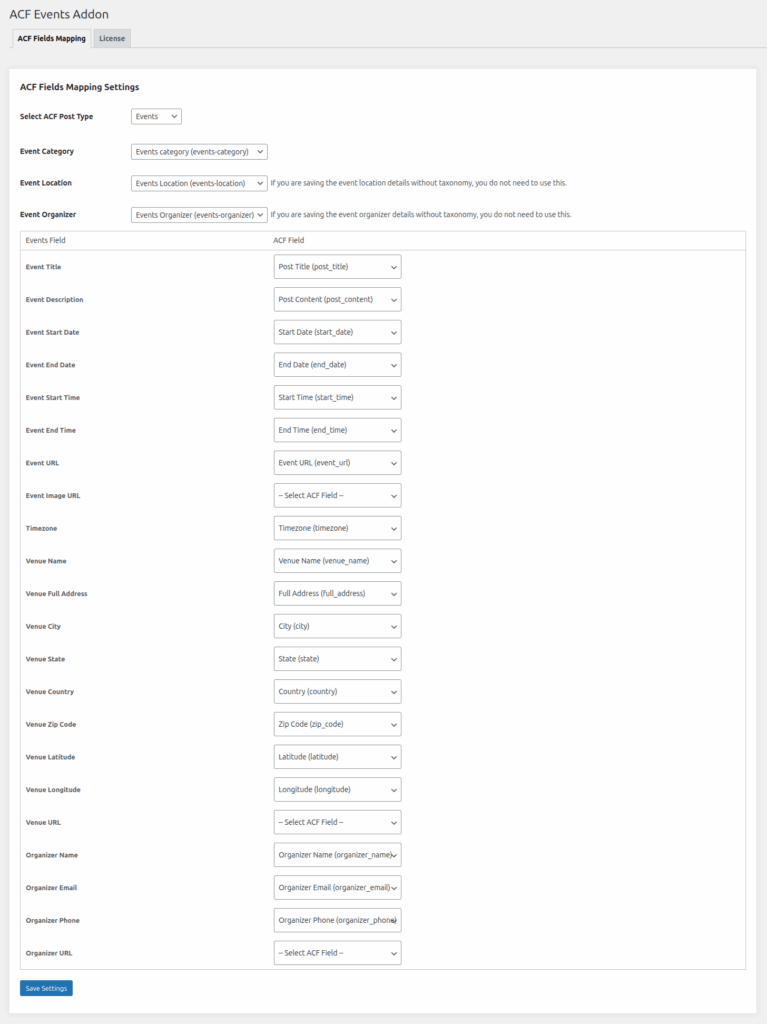
ACF Fields Mapping Settings
Select ACF Post Type
==> Select the Custom Post Type (CPT) where your event data is stored. This dropdown shows all available post types which is created with ACF.
Event Category
==> Choose the taxonomy that represents event categories. Typically a custom taxonomy like events-category.
Event Location
==> Select the taxonomy used for event locations. If you want to save location details using custom fields only, you can leave this unselected.
Event Organizer
==> Select the taxonomy used for the event organiser. If you want to save organiser details using custom fields only, you can leave this unselected.
Event Field Mappings
Below are the mappings of ACF fields with standard event field labels. The post title, Description, and event image is auto adding in the events.
Event Title
==> This option is used only if you want to save the event title in a custom ACF field. If left unselected, the event title will be automatically added to the post title during event creation.
Event Description
==> This option is used only if you want to save the event description in a custom ACF field. If left unselected, the event title will be automatically added to the post description during event creation.
Event Start Date
==> Select the ACF field storing the event’s start date (e.g., start_date).
Event End Date
==> Select the ACF field for the event’s end date (e.g., end_date).
Event Start Time
==> The field storing the event start time (e.g., start_time).
Event End Time
==> The ACF field storing the event end time (e.g., end_time).
Event URL
==> This optional field is used to store the original source link of the event, such as an external or internal event page (e.g., facebook event url).
Event Image URL
==> If the event has an image, it will be automatically set as the post’s featured image. This option will save the image attachment ID (set as featured image) into the selected ACF meta field.
Timezone
==> This option is used to store the event’s timezone from a selected ACF field (e.g., timezone). It helps in accurately converting and displaying the event date and time based on the saved timezone.
Venue Name
==> Select the ACF field where you want to save the venue name (e.g., venue_name). This option will store the venue’s name in the chosen ACF custom field.
Venue Full Address
==> Select the ACF field where you want to save the Full address (e.g., full_address ). This option will store the Full address in the chosen ACF custom field.
Venue City
==> Select the ACF field where you want to save the city (e.g., city). This option will store the venue’s city in the chosen ACF custom field.
Venue State
==> Select the ACF field where you want to save the state (e.g., state). This option will store the venue’s state in the chosen ACF custom field.
Venue Country
==> Select the ACF field where you want to save the country (e.g., country). This option will store the venue’s country in the chosen ACF custom field.
Venue Zip Code
==> Select the ACF field where you want to save the zip_code (e.g., zip_code). This option will store the venue’s zip_code in the chosen ACF custom field.
Venue Latitude
==> Select the ACF field where you want to save the latitude (e.g., latitude). This option will store the venue’s latitude in the chosen ACF custom field.
Venue Longitude
==> Select the ACF field where you want to save the longitude (e.g., longitude). This option will store the venue’s longitude in the chosen ACF custom field.
Venue URL
==> Select the ACF field where you want to save the venue’s website (e.g., venue_url).
Organizer Information Fields
Organizer Name
==> ACF field that stores the name of the event organizer (e.g., organizer_name).
Organizer Email
==> ACF field that stores the email of the event organizer (e.g., organizer_email).
Organizer Phone
==> ACF field that stores the phone of the event organizer (e.g., organizer_phone).
Organizer URL
==> Optional field for the organizer’s website (e.g., organizer_url).
Save Settings
After completing your mappings, click the Save Settings button to store your preferences.