
XT Feed for LinkedIn: Set Schedule Posts
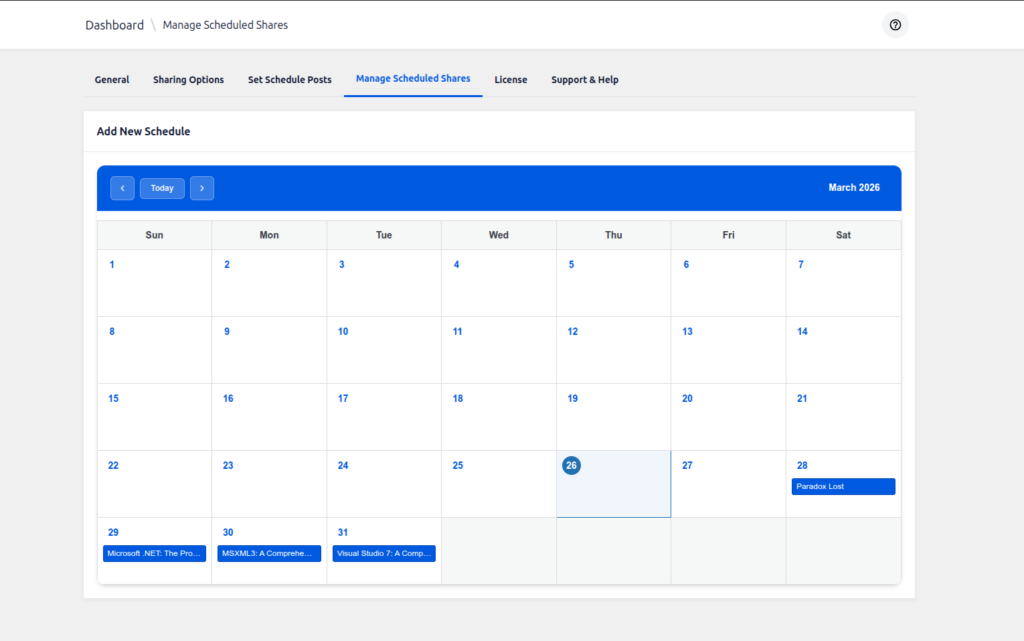
The Set Schedule Posts section allows you to schedule your LinkedIn shares directly from a calendar view. You can easily add, edit, or delete scheduled posts using an interactive calendar interface.
📅 Calendar View
The calendar provides a visual overview of your scheduled posts. Each day with a scheduled post will be visually highlighted (e.g., with a dot or different background color).
- Add a Schedule – Click on any date box to open the scheduling modal.
- Edit a Schedule – Click on a date that already has a schedule to modify it.
- Delete a Schedule – Use the delete option inside the modal or manage via the post list.
➕ Add a New Schedule
Follow these steps to schedule a post:
- Click on a Date Box
Select the desired date from the calendar. A modal will open. - Review the Selected Date
The date you clicked on will be auto-filled in the modal. You can change it if needed. - Search for a Post
- Start typing at least 3 characters in the post search field.
- The search will only show posts from the post types enabled in the Sharing Options tab.
- Select the post you want to schedule.
- Set the Time
Choose the exact time when the post should be shared on LinkedIn. - Save the Schedule
Click the Schedule Post button to confirm.
The schedule will be saved, and the calendar will update to reflect the scheduled post.
✅ The schedule is saved only after clicking Schedule Post. No automatic saving occurs.
✏️ Edit an Existing Schedule
- Click on the date box in the calendar that contains the schedule you want to edit.
- The modal will open with the existing details pre-filled.
- Modify the date or time as needed.
- Click Update Schedule to save your changes.
🗑️ Delete a Schedule
You can delete a scheduled post :
Delete from Calendar
- Click on the scheduled date box.
- In the modal, click the Delete button.
- Confirm the deletion if prompted.
🔍 Post Search Behavior
- The search field only displays posts from post types enabled in the Sharing Options tab.
- You must type at least 3 characters to trigger the search.
- Supported post types include:
- Posts (standard blog posts)
- Pages
- Custom Post Types (CPTs)
📌 Notes
- The calendar view helps you manage all scheduled shares at a glance.
- You can schedule multiple posts on the same day — each will appear separately in the modal or list view.
- Scheduled posts are automatically processed at the specified date and time for LinkedIn sharing.