
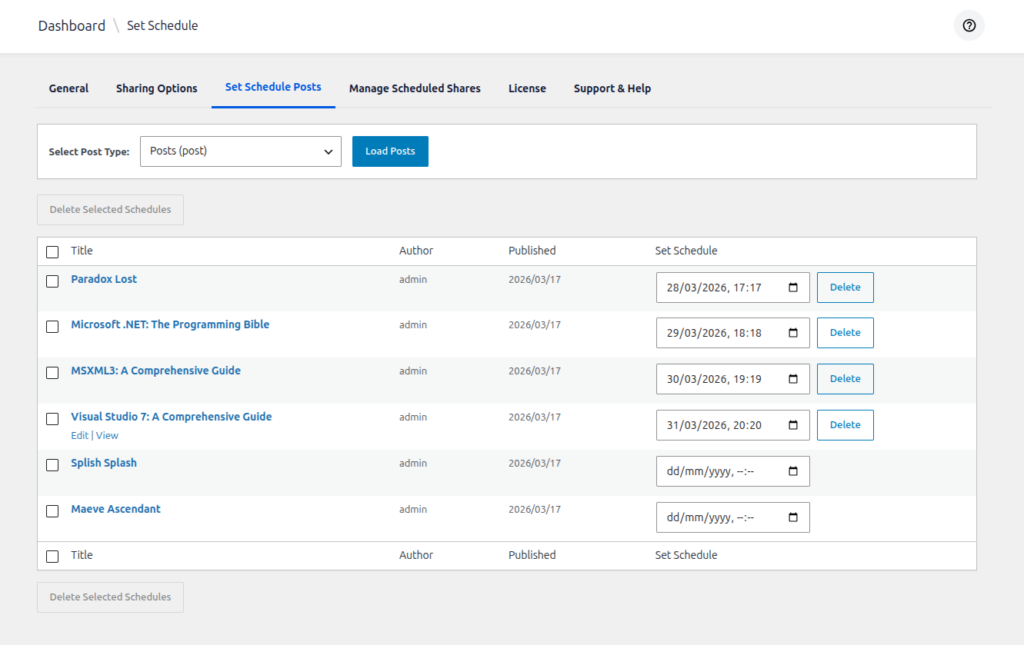
XT Feed for LinkedIn Set Schedule Posts
The Set Schedule Posts section in XT Feed for LinkedIn allows you to schedule your posts to be shared on LinkedIn at a specific date and time. Below is a detailed breakdown of the available settings and features:
1. Select Post Type
You can choose which type of content you want to schedule for LinkedIn sharing. Supported options include:
- Post – Standard blog posts.
- Page – Static WordPress pages.
- CPTs – Any Custom Post Types supported.
👉 After selecting a post type, the posts of that type will be displayed in the table below.
2. Posts List & Set Schedule
Each post is displayed in a table with the following columns:
- Title – The name of the post.
- Author – The post author.
- Published – The published date of the post.
- Set Schedule – A date-time input where you can select when the post should be shared on LinkedIn.
How it works:
- Click the calendar icon in the Set Schedule column to select the date and time.
- The schedule is saved automatically as soon as the date and time are selected.
- Once scheduled, a Delete button will appear next to the date-time input for removing the schedule.
3. Delete Scheduled Shares
You can remove scheduled posts in two ways:
- Bulk Delete – Use the checkboxes to select multiple posts or click the select-all checkbox, then click the Delete Selected Schedules button to remove all selected schedules.
- Individual Delete – Click the Delete button next to a specific scheduled post to remove its schedule individually.
4. Notes
- Scheduled posts will only be shared at the selected date and time.
- If a schedule is removed (either bulk or individually), the post will no longer be shared automatically at that time.
- This feature works for all supported post types (posts, pages, and custom post types).