
Articles
Select Event Source
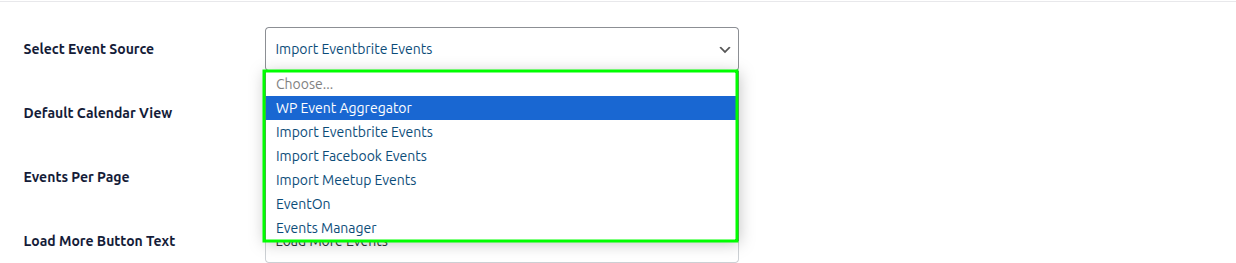
Select Event Source: This setting allows you to choose which platform to display events from. You can choose from Facebook, Eventbrite, Meetup, EventOn, Events manager or WP Event Aggregator based on your needs. Only one source can be active at a time.
Default Calendar View
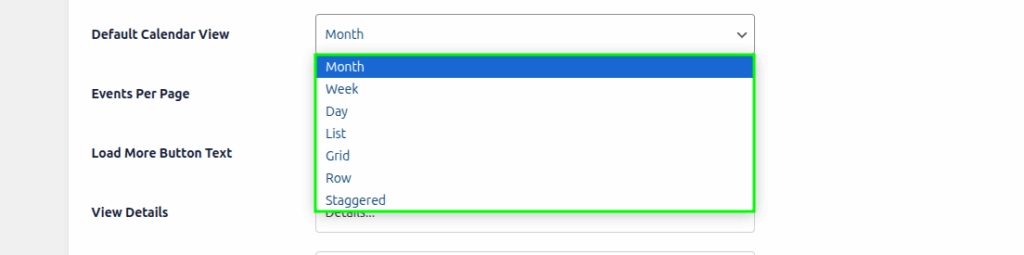
Default Calendar View: Choose the default layout for displaying events. The calendar supports 7 unique views: Month, Week, Day, List, Grid, Row, and Staggered. This will be the default view when the calendar loads.
Events Per Page

Events Per Page: Set the number of events to show per page. After reaching the limit, a “Load More” button will appear to dynamically load more events.
Load More Button Text
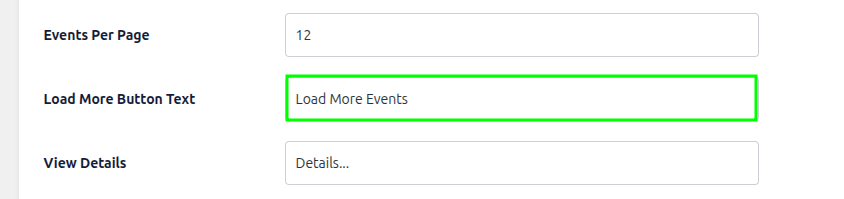
Load More Button Text: Customize the label shown on the “Load More” button. You can set any text like “Show More”, “See All Events”, etc. This button appears when event count exceeds the set limit.
View Details

View Details: Set the text label for the button or link that redirects to the event detail page. Example: “Details…”, “More Info”, etc.
Week Starts On
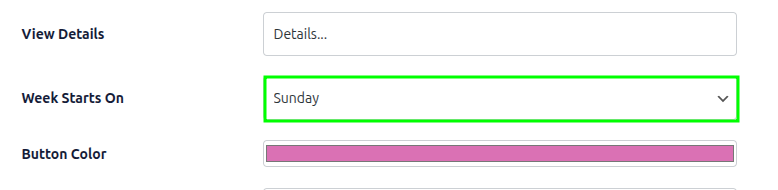
Week Starts On: Choose the first day of the week for your calendar. You can select any day from Sunday to Saturday depending on your region or preference.
Button Color

Button Color: Set the background color of buttons used in the calendar (e.g., “Load More”, “Details”, …). Match it with your theme’s branding.
Text Color

Text Color: Define the main text color used throughout the calendar layout to ensure it matches your site’s readability and design.
Event Title Color

Event Title Color: This setting controls the color of event titles shown in Grid, Row, Staggered views. Use a color that provides good contrast with your background.