
Articles
General Settings Overview
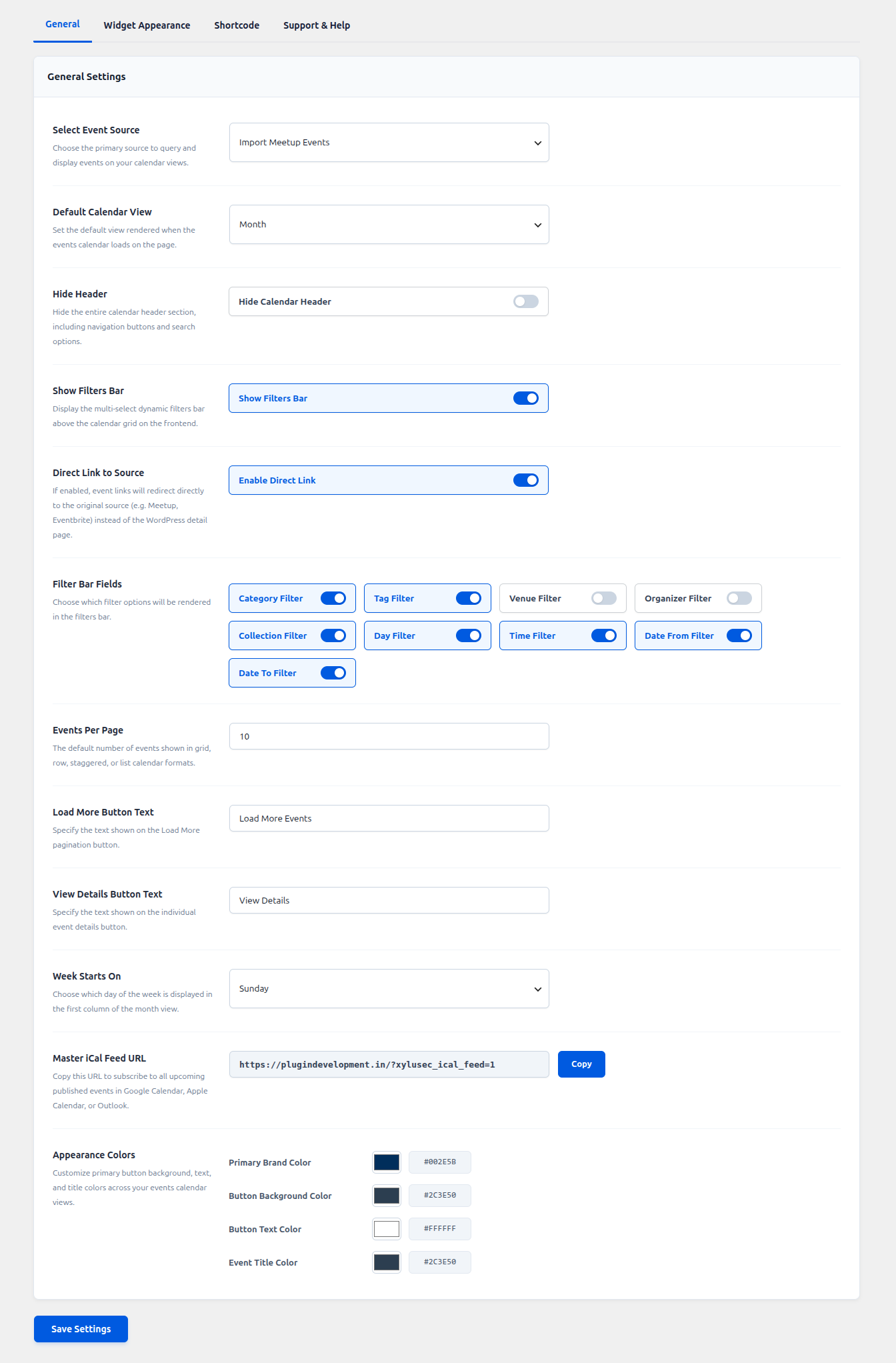
The General Settings tab provides complete control over your calendar’s layout, event sources, filters, and branding. Below is a detailed breakdown of all available options in the latest version:
Select Event Source
Choose which platform to display events from. You can choose the internal “Easy Events” engine or external sources like Facebook, Eventbrite, Meetup, EventOn, Events Manager, or WP Event Aggregator. Only one source can be active at a time.
Default Calendar View
Choose the default layout for displaying events. The calendar supports multiple unique views including Month, Week, Day, List, Grid, Row, Staggered (Masonry), Slider, and Mini Calendar. This will be the initial view when the calendar loads.
Header Visibility (Hide Header)
Enable this option to completely hide the top header of the calendar (which usually contains the view toggles and filters). Useful if you want a minimal, static calendar display.
Show Filters in Header
Toggle this option to display or hide the advanced search and filtering bar at the top of your calendar.
Direct Link to Source
If enabled, event links will redirect directly to the original source (e.g. Meetup, Eventbrite) instead of the WordPress detail page.
Advanced Filter Options
If the filter bar is enabled, you can individually control which filters are available to your users. You can toggle visibility for:
- Category
- Tag
- Venue
- Organizer
- Collection
- Day
- Time
- Date From
- Date To
Events Per Page
Set the maximum number of events to show per page. After reaching the limit, a “Load More” button or pagination will appear to let users dynamically load more events.
Load More Button Text
Customize the label shown on the “Load More” button. You can set any text like “Show More”, “See All Events”, etc.
View Details Text
Set the text label for the button or link that redirects users to the single event detail page. Example: “Details…”, “More Info”, or “Get Tickets”.
Week Starts On
Choose the first day of the week for your calendar. You can select any day from Sunday to Saturday depending on your region or preference.
Primary Brand Color
Easily match the calendar to your website’s branding. This dynamically updates the global color scheme of the calendar (including badges, active dates, borders, and highlights) without writing any custom CSS.
Button Color
Set the background color specifically for action buttons used in the calendar (e.g., “Load More”, “Details”).
Text Color
Define the main body text color used throughout the calendar layouts to ensure maximum readability and design consistency.
Event Title Color
This setting controls the color of the event titles shown in Grid, Row, Staggered, and List views. Use a color that provides good contrast with your background.