
Let’s say you use Outlook Calendar to manage events and would like to publish those events to your site’s calendar. Thanks to WP Event Aggregator, there’s no need to manually re-publish those events. You can simply import them. You can choose to do a one-time import, or set up a recurring import to happen automatically.
To get started, log into your Google account and access your Google Calendar.
1. Go to Outlook iCalendar Settings
Log into your WordPress site and navigate to:
WP Event Aggregator → Settings → iCalendar / .ics
Scroll to the Microsoft Authorization section.
2. Connect Your Outlook Account
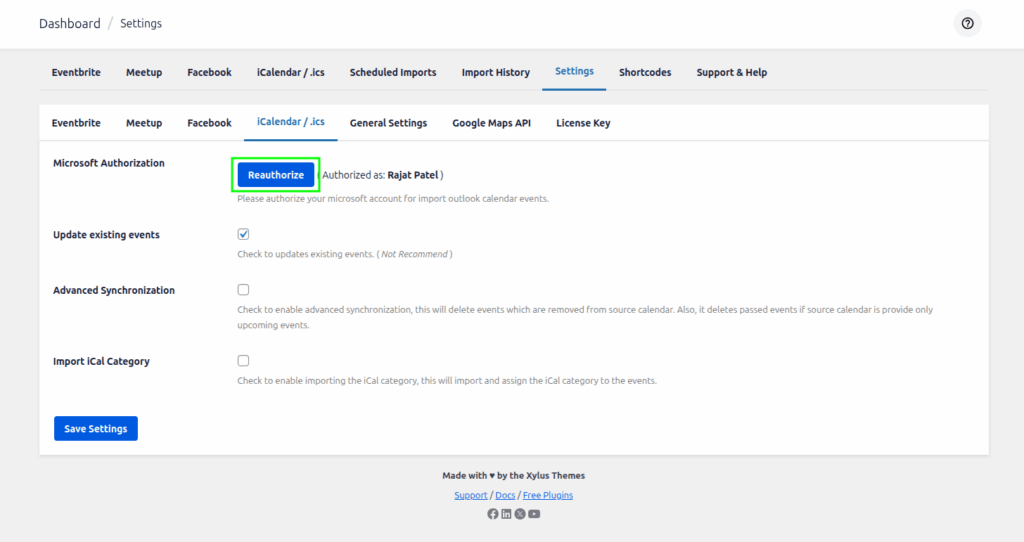
Click the Authorize button.
- The page redirects you to the official Microsoft login screen in the same tab.
- Sign in with your Outlook/Microsoft account.
- Approve permissions.
- After successful authorization, you will be automatically redirected back to the same iCalendar / .ics settings page.
Once done, you’ll see your connected the authorization name.
3. Select Your Outlook Calendar
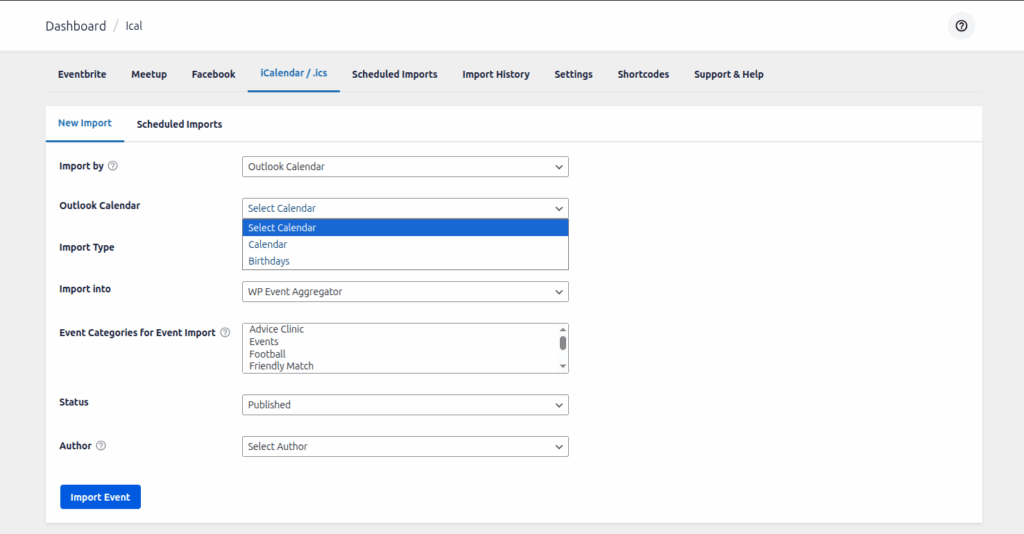
After authorization, the plugin automatically fetches all your Outlook calendars, including:
- Calendar
- Birthdays
- Holidays
- Custom calendars
- Shared calendars (if available)
From the dropdown, choose the calendar from which you want to import events.
4. Configure Your Import Settings
Import Type
You can choose:
Manual Import
Imports all events immediately.
Scheduled Import
Automatically imports events based on your preferred frequency:
- Hourly
- Twice Daily
- Daily
- Monthly
Once scheduled, events will sync automatically—even if you’re offline.
5. Event Categories
You can assign a category to all imported events.
This will be added in addition to any categories defined in the Outlook feed.
6. Event Status
Choose how imported events should be saved in WordPress:
- Published — Visible immediately
- Draft — Saved for review
- Pending — Awaiting approval
This status also applies to any organizer or venue created during import.
7. Import Your Events
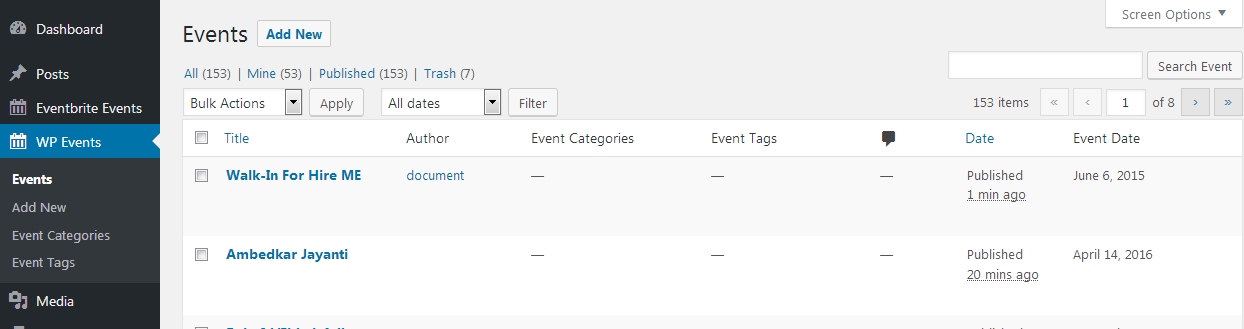
Once everything is configured, click the Import button.
Your Outlook events will be imported into your WordPress Events section.
If scheduled import is selected, the system will continue importing events automatically.