
The Import Listing Pro Addon allows you to seamlessly and automatically import events into the Listing Pro Theme event directory. This powerful extension seamlessly integrates with our top event importer plugins: WP Event Aggregator, Import Facebook Events, Import Eventbrite Events, and Import Meetup Events.
While the process is beautifully uniform across all our plugins, let’s look at a quick example of how easy it is to import events! (We’ll use Eventbrite for this demonstration, but the steps are identical for Facebook, Meetup, and iCal!)
1. Importing Events (Single or Multiple)
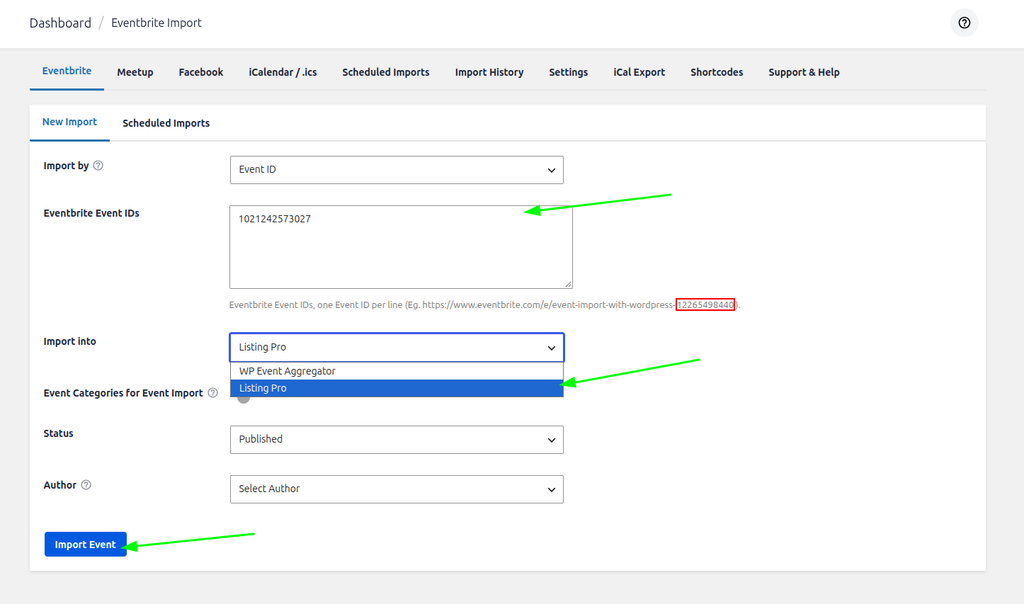
Import By: Simply choose your source from the dropdown. For example, select “Event ID” to fetch specific events.
Source Details (Event IDs / URLs): Enter the specific ID or URL of the event you wish to import.
Pro Tip: You can import multiple events at once by pasting different IDs or URLs on separate lines!
Import Into: This is the most important step! Choose “Listing Pro” from the drop-down list to ensure your events are perfectly mapped to your directory’s layout.
Status: Select the default status for the imported event (Published or Draft).
Finally, click the Import Events button to fetch the events into your WordPress site.
Finding the Event ID or URL
Depending on the plugin, you might need the Event URL or the Event ID. For Eventbrite, the Event ID can be easily found by looking at the URL of the event on eventbrite.com.
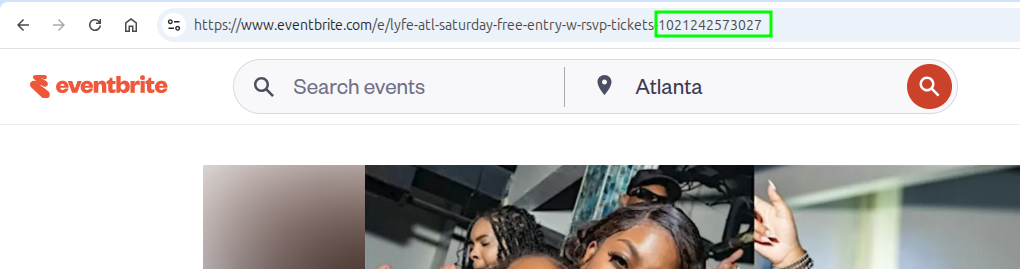
When you view a particular event on Eventbrite, the ID is typically the long string of numbers at the very end of the URL. (For Facebook or Meetup, simply copying the full URL is usually enough!)
Viewing Imported Events
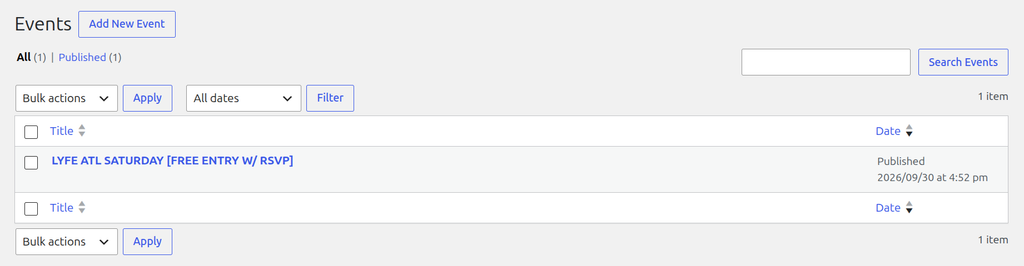
Once imported, you will see your shiny new events beautifully listed under your ListingPro All Events / Listings section!
2. Automating Imports (Scheduled Syncing)
Why import manually when you can automate? If you want to fetch bulk events from a broader source, like an Eventbrite Organizer, a Facebook Page, or a Meetup Group, you can set up a Scheduled Import.
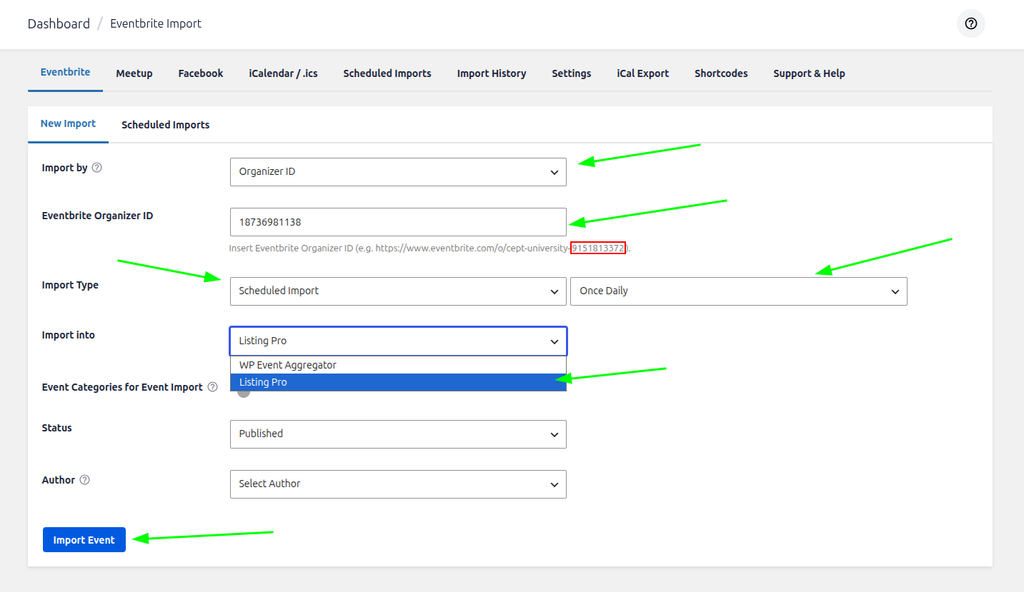
Import By: Choose a broader source, such as Eventbrite Organizer, Facebook Page, or Meetup Group.
Import Type: Switch from a one-time import to a Scheduled Import. You can set the frequency to: Once Hourly, Twice Daily, Once Daily, Once Weekly, or Once Monthly.
- Once Hourly: Runs automatically once every hour to fetch new events and update existing ones.
- Twice Daily: Runs automatically twice a day to sync changes.
- Once Daily: Runs automatically once a day.
- Once Weekly: Runs automatically once a week.
- Once Monthly: Runs automatically once a month.
Status: Select the default status of the imported events.
Click the Import Events button to begin the automated sync process.
Viewing Imported Events
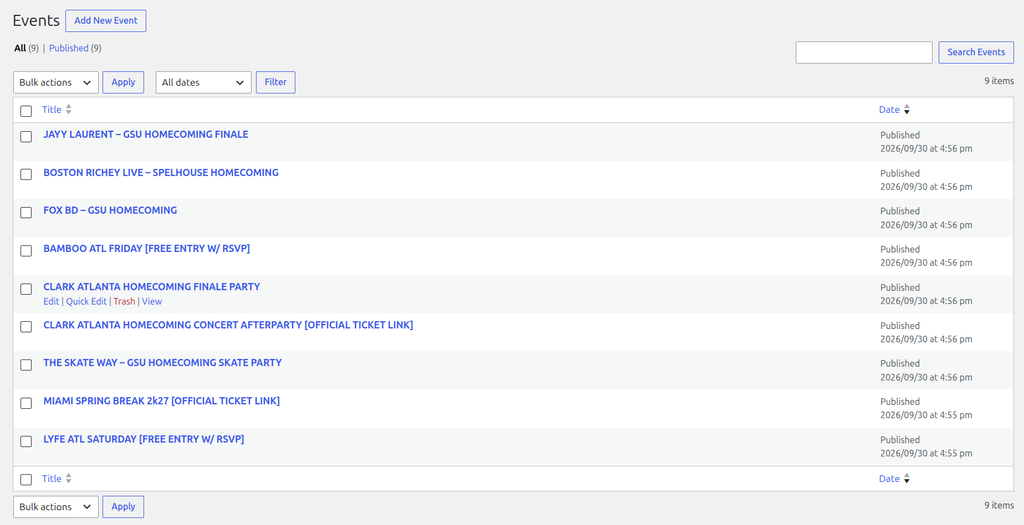
Now you can see your bulk imported events perfectly mapped to your ListingPro directory. This is how you automate your event workflow like a pro!