
Due to LinkedIn’s official API limitations, personal profile updates cannot be fetched through standard developer apps. XT Feed for LinkedIn Pro solves this by integrating with Apify, enabling you to effortlessly showcase posts, images, and social engagements from any public LinkedIn personal profile on your website.
Follow this step-by-step guide to obtain your Apify API Token, configure the Profile Settings, and set up automatic background synchronization.
Step 1: Get Your Free Apify API Token
To fetch LinkedIn profile posts, you need an Apify Personal API token. Apify offers a generous free tier that is plenty for regular sync:
- Visit Apify.com and sign up for a free account (or log in if you already have one).
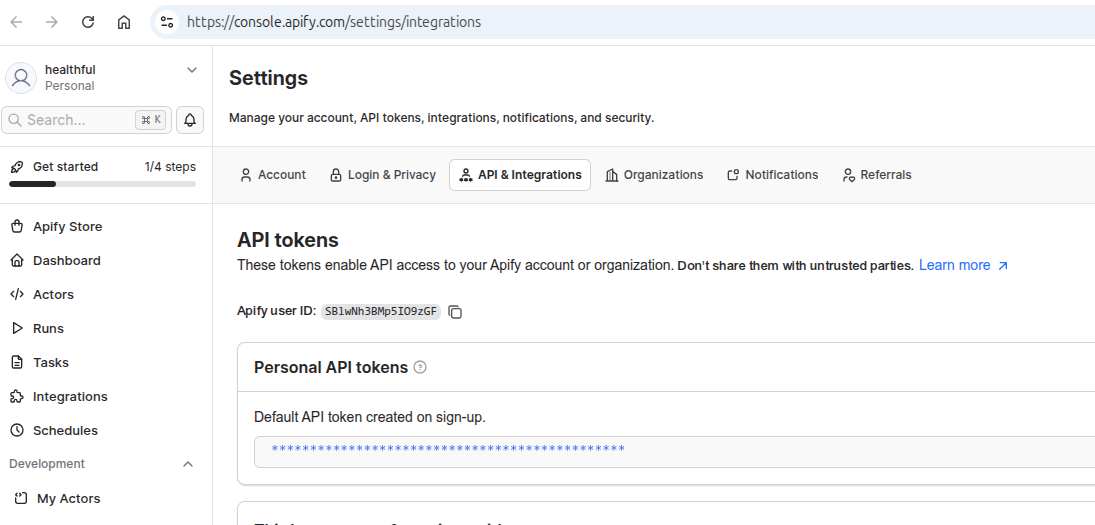
- Navigate to your Apify Dashboard and click on Settings > Integrations (or visit Apify Integrations Console directly).
- Under the API tokens section, find your Personal API token (starts with
apify_api_...). - Click on the token to copy it to your clipboard.
Step 2: Enter & Test Apify Token in WordPress
Once you have your Apify token, connect it in your WordPress dashboard:
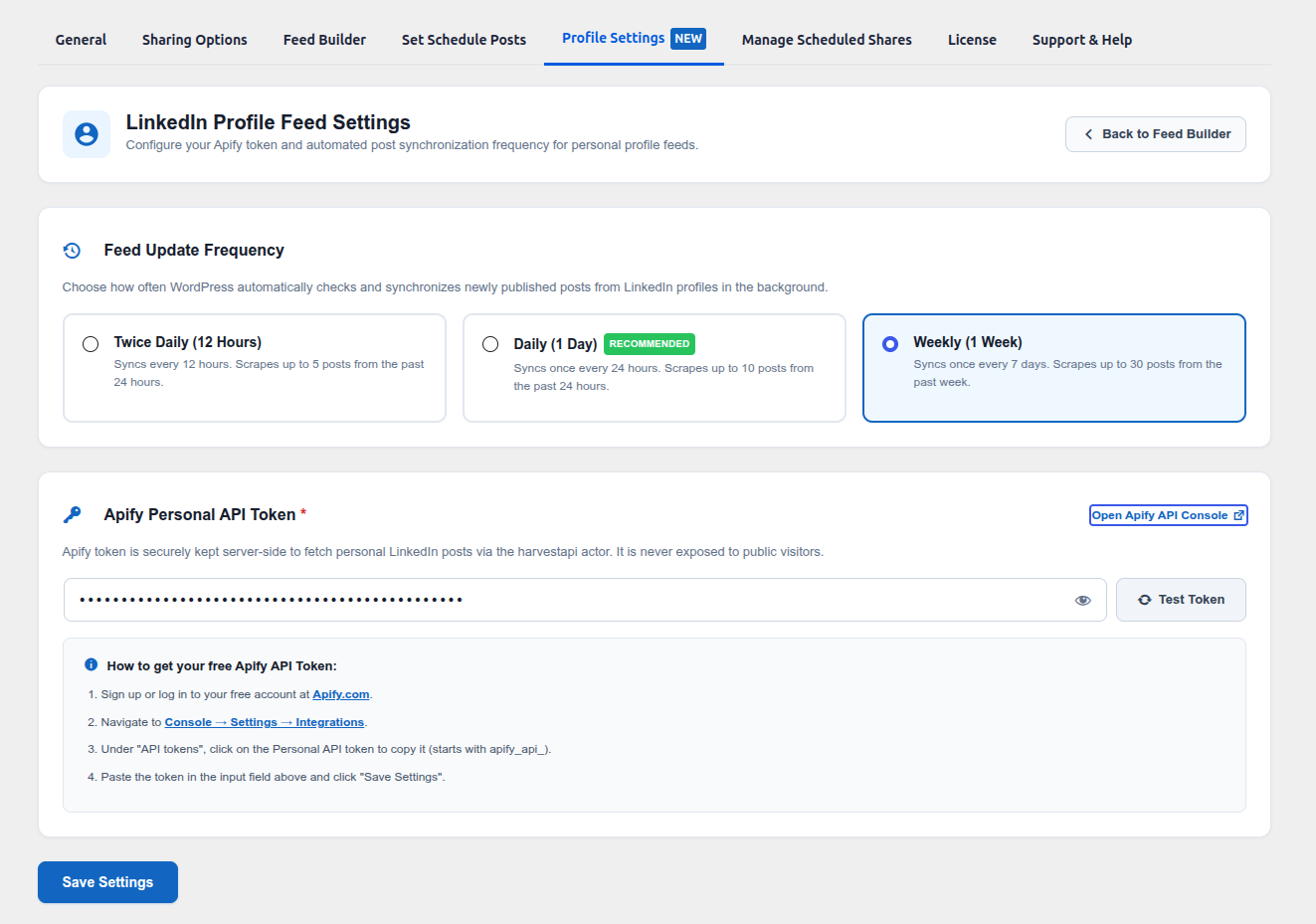
- In your WordPress admin dashboard, navigate to XT Feed for LinkedIn > Profile Settings (or click the Profile Settings [NEW] tab in the top navigation bar).
- In the Apify Personal API Token field, paste your copied API token.
- Click the Test Token button next to the input field:
- Success (Green Checkmark): Confirms your token is valid and your WordPress site successfully communicates with Apify.
- Error (Red Cross): Double-check that the token was copied completely without any leading or trailing spaces.
Note: You can use the eye icon inside the input box to show or mask your token. Your token is stored securely server-side in WordPress and is never exposed to public website visitors.
Step 3: Choose Feed Update Frequency
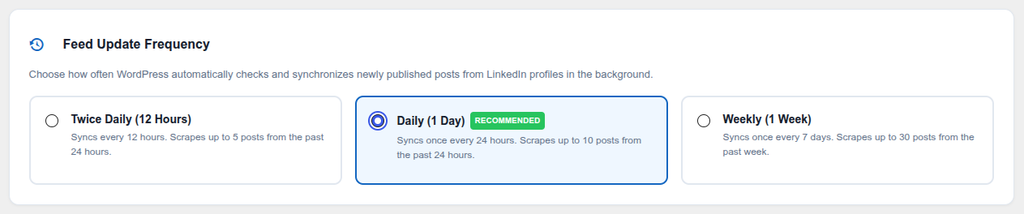
Under the Feed Update Frequency card, select how frequently WordPress should run background synchronization to check for newly published posts from your connected profiles:
- Twice Daily (12 Hours): Automatically checks and syncs every 12 hours. Scrapes up to 5 posts from the past 24 hours. Recommended for high-activity profiles.
- Daily (1 Day) — [Recommended]: Checks and syncs once every 24 hours. Scrapes up to 10 posts from the past 24 hours. Perfect balance between freshness and optimal Apify usage.
- Weekly (1 Week): Checks and syncs once every 7 days. Scrapes up to 30 posts from the past week. Best for profiles that post occasionally.
Step 4: Save Settings
Click the Save Settings button at the bottom of the page. You will see a success confirmation notice confirming that your Apify token has been saved and the background WP-Cron schedule has been updated.
Next Step: Create Your Profile Feed
Now that your profile integration is ready, head over to XT Feed for LinkedIn > Feed Builder to create your personal profile feed:
- Click Create New Feed.
- Set Feed Source to Profile.
- Enter your LinkedIn Profile Username (e.g.,
satyanadella). - Choose your layout, customize options, and save! For detailed feed creation steps, see: Displaying the LinkedIn Feed.