
The WooCommerce Product Deletion Plugin allows administrators to delete WooCommerce products based on various filters such as product status, date, category, contains. It also provides scheduling options for automated product deletions.
WooCommerce Products Status
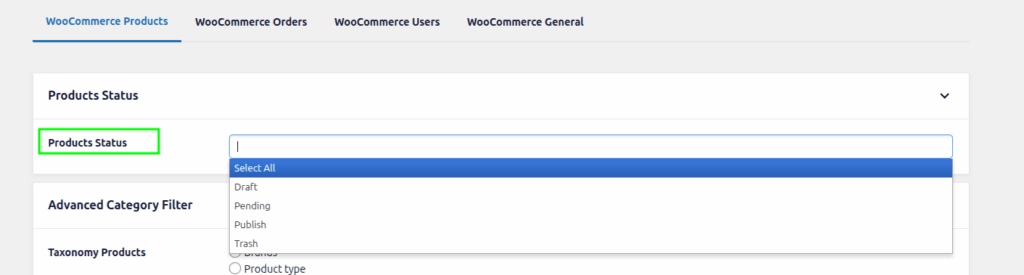
WooCommerce Products Status :- Select specific WooCommerce product statuses to delete products based on their current state. You can delete products with statuses such as:
Draft, Pending, Publish Trash… etc…
Advanced Category Filter
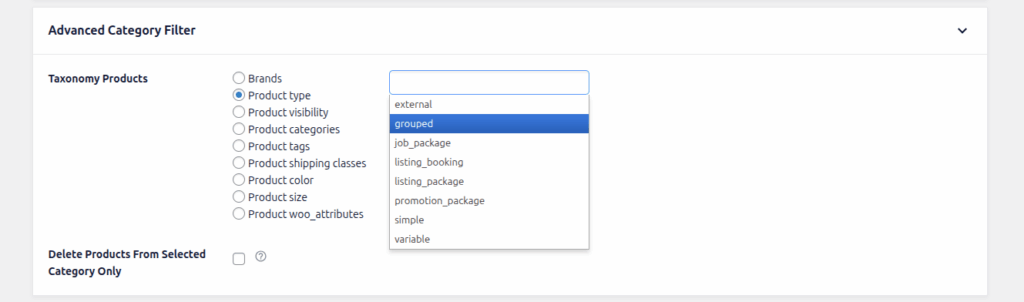
Products Taxonomy :- In the Advanced Category Filter, the Taxonomy Products option is used to select Categories or Tags.
Delete Products From Selected Category Only :- By selecting this option, only the selected category Products will be deleted, but if the Product has another category with the selected category, that Product will not be deleted (which means products that have multiple categories will not be deleted)
Advanced Date Filter

Date Products :- You can delete a product using the 3 options in the delete product date.
=> older than: You can delete products that are older than your selected days.
=> Posted within last: You can delete products that are posted within the last of your selected days.
=> 1 Month: You can delete products that are posted within the last 1 month.
=> 2 Months: You can delete products that are posted within the last 2 months.
=> 1 Year: You can delete products that are posted within the last 1 year.
=> 2 Years: You can delete products that are posted within the last 2 years.
=> Posted between If you want to delete a product between the start date and the end date. Then this option will be helpful for you.
Modified Products :- You can delete a product using the 3 options in the delete product date interval.
=> older than: You can delete products that are older than your selected days.
=> older than: You can delete products that are older than your selected days.
=> Posted within last: You can delete products that are posted within the last of your selected days.
=> Posted between If you want to delete a product between the start date and the end date. Then this option will be helpful for you.
Advanced Contains Filter

If Products Title Contains:- in this option, you can delete the product by title. here are 2 options to filter the title
Delete It: this option will help If you want to delete a product whose title matches the product title have added in the input.
Don’t Delete t: this option will help If you want to delete a product whose title does not match the product title have added in the input.
If Products Content Contains:- in this option, you can delete the product by Content. here are 2 options to filter the Content
Delete It: this option will help If you want to delete a product whose Content matches the product Content have added in the input.
Don’t Delete t: this option will help If you want to delete a product whose Content does not match the product Content have added in the input.
Custom Field Filter

Custom fields settings :- Use this filter to delete products based on custom meta values. Enter the meta key and the value you want to match. Choose the appropriate comparison type from the dropdown to specify how the value should be compared.
Delete Product Feature Image Filter

Delete Products Featured image:- It enables the removal of the featured image of the product and it’s gallery, if the image is a featured image of multiple products, it will not be removed. and If the image is being used in a place other than the featured image and gallery’s image, it will be deleted.
Action
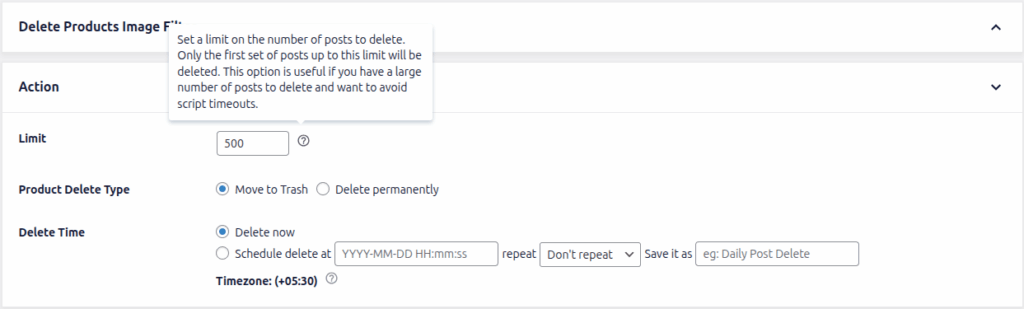
Limit:- Set the limit over products delete. It will delete only the first limit products. For example, if you write a limit of 2 you delete a maximum of 2 products.
Products Delete Type:-
- Move to Trash => Products will be moved to the trash.
- Delete Permanently => Products will be permanently deleted.
Detele Time:- WP Bulk Delete Pro provides functionality to schedule deleting at a particular time. and You can choose the scheduled at option at Delete Time to schedule delete. it has 2 options.
- Delete now => It will start the delete operation just after you press the delete button.
- Schedule Delete => If you want to run the delete operation later at a particular time. You can also repeat delete operations Once Hourly, Once a Month, once weekly, Twice Daily, Once Daily. You can see repetitive scheduled deletes at the WP Bulk Delete > Schedule Delete page