
Learn how to use WP Smart Import’s Manage Import screen to monitor, edit, delete, and run your saved imports.
To view your imports, navigate to the WordPress admin panel -> WP Smart Import -> Manage Import. You should see a list of all your created imports in a comprehensive table, as shown in the screenshot below.
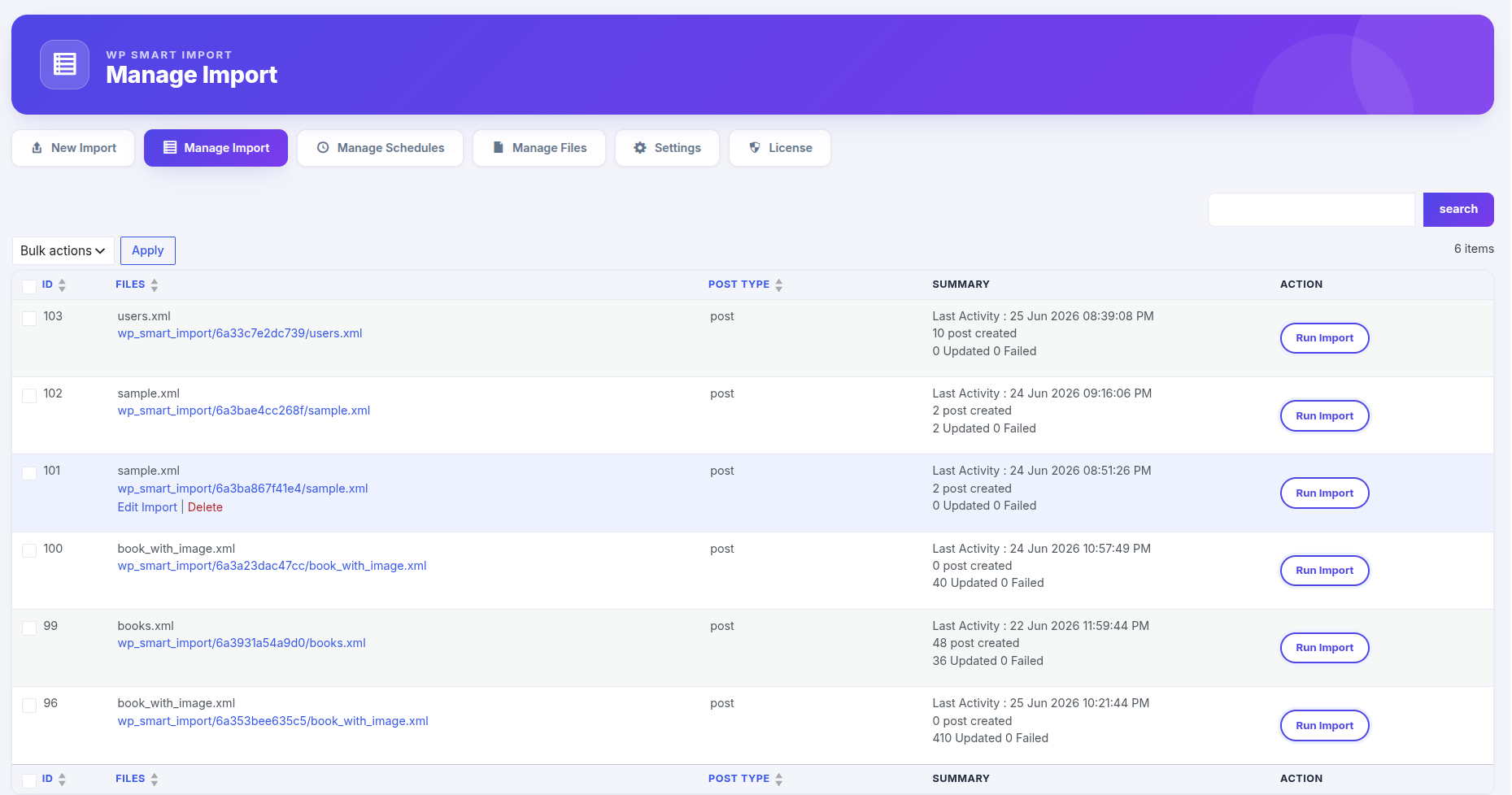
The table displays crucial information about each import job. The interface is divided into the following columns:
- ID — The database ID of the import template.
- Files — The name of the template and the raw source file path link. When you hover over the row, quick links to **Edit Import** and **Delete** will appear under the name.
- Post Type — The target WordPress post type selected for this import (e.g., Posts, Pages, Products).
- Summary — Live status logs of the last run, including the timestamp and the counts of posts created, updated, or failed.
- Action — Displays the **Run Import** button to execute the import job manually.
Step 1 : Run Import
To run an import manually, locate the desired import template in the table and click the Run Import button in the Action column. This button is designed with a modern border and soft outer focus shadow to ensure high visibility.
Once clicked, the import process starts immediately. A real-time progress bar will appear, showing you the percentage completion and live post counters (Created, Updated, and Failed).
Step 2 : Edit Import Templates
If you need to change the mapping or options of an existing template, hover over the row and click the Edit Import link. This will redirect you to the step-by-step drag-and-drop wizard where you can update content mapping, custom fields, taxonomies, or post options.
Step 3 : Delete Import Templates
To remove a template from your list, hover over the row and click the Delete link. This will permanently remove the import template configuration from your database.