
Learn how to activate and manage your product license key inside the License screen in WP Smart Import.
To access the license settings, navigate to the WordPress admin panel -> WP Smart Import -> License. You should see the license activation panel as shown in the screenshot below.
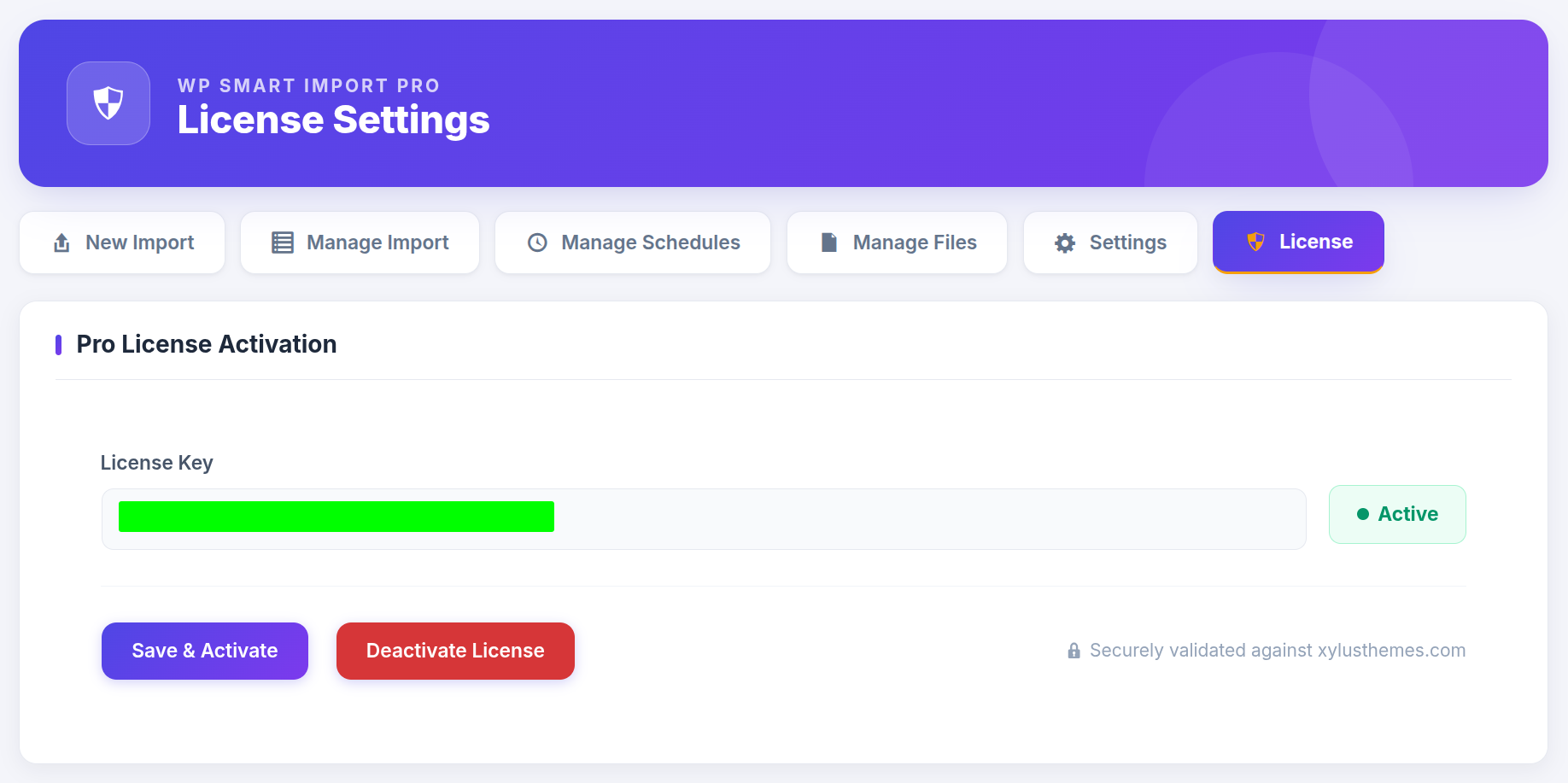
The license screen provides a card-based layout to register the plugin to your domain, enabling automatic updates and premium features.
Step 1 : Activate License Key
Copy the product license key received with your purchase, paste it into the License Key input field, and click the Save & Activate License button.
Once the validation is complete, the license status card will update with a success status checkmark, displaying subscription details such as active status, plan type, and renewal date.
Step 2 : Deactivate or Migrate License
If you need to migrate the plugin to another domain or staging site, click the Deactivate License button on the license status card. This releases the key from your current site, allowing it to be registered on a new WordPress site.