
Learn how to configure global plugin preferences, performance settings, and background import batch sizes inside the Settings screen in WP Smart Import.
To access the settings, navigate to the WordPress admin panel -> WP Smart Import -> Settings. You should see the settings panel as shown in the screenshot below.
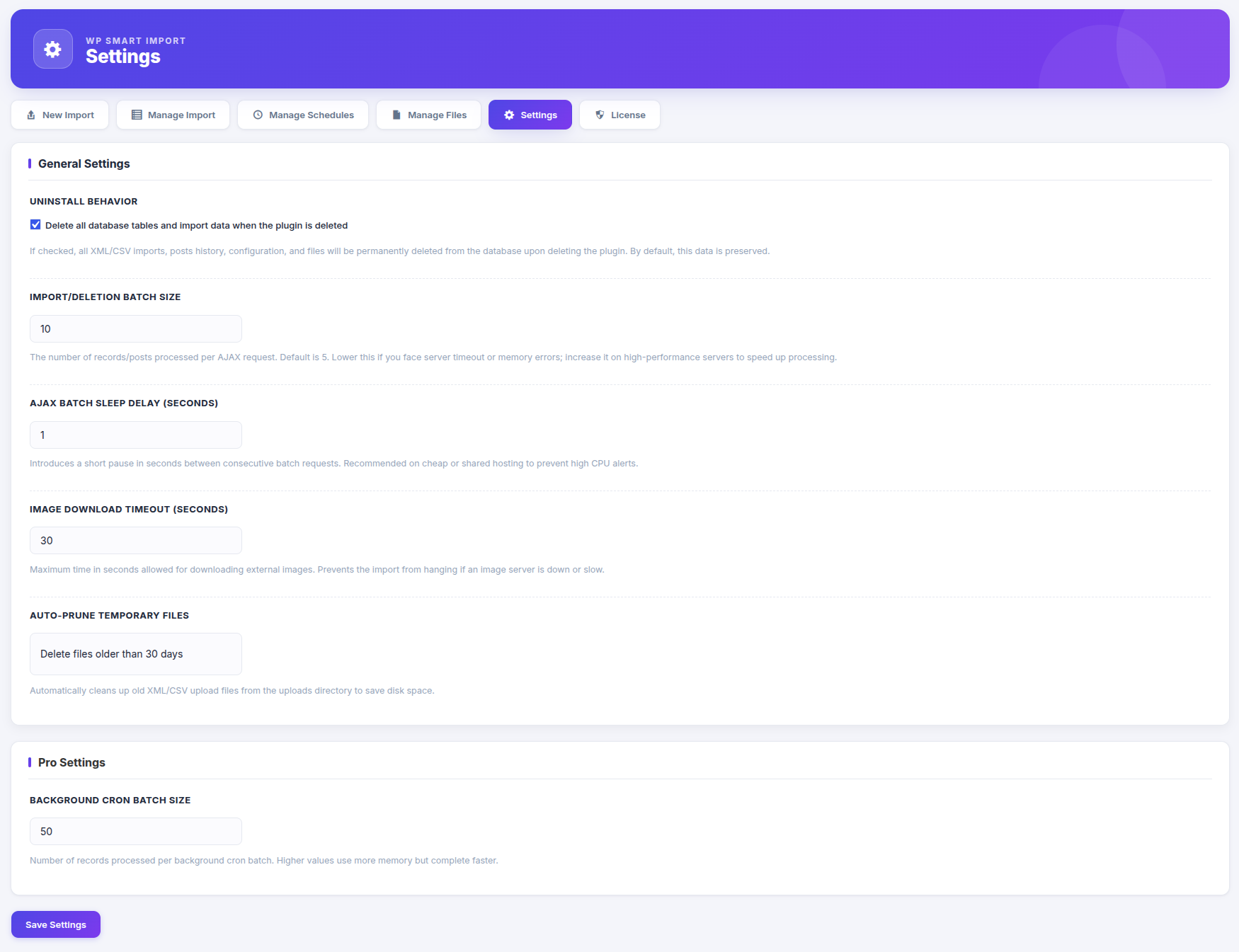
The settings screen is divided into two sections: General Settings and Pro Settings. These settings allow you to optimize performance based on your server capacity.
Step 1 : Configure General Settings
Adjust the following options to customize the default import behavior and cleanup preferences:
- Uninstall Behavior — Enable the option “Delete all database tables and import data when the plugin is deleted” if you want all saved import configurations, templates, files database, and execution history to be wiped clean from the database when you delete the plugin. If unchecked, your configuration is preserved.
- Import/Deletion Batch Size — Controls how many posts are processed in a single AJAX request. The default limit is 10. Lower this value if your server faces timeout or memory limit issues, or increase it on higher-performance servers to speed up imports.
- AJAX Batch Sleep Delay (Seconds) — Sets a pause delay (in seconds) between consecutive batch requests. Adding a 1-second or 2-second sleep delay is highly recommended on budget shared hosting environments to avoid server CPU usage alerts.
- Image Download Timeout (Seconds) — Sets the maximum time in seconds allowed for downloading external remote images. This prevent imports from freezing if an external image server is offline or extremely slow.
- Auto-Prune Temporary Files — Set a timeframe (e.g., “Delete files older than 30 days”) to automatically clear old uploaded XML, CSV, and JSON source files from your server uploads directory to free up disk space.
Step 2 : Configure Pro Settings
Configure settings for background automated imports:
- Background Cron Batch Size — Specifies the number of records/posts processed per background cron execution batch. A higher value uses more server memory but completes background imports significantly faster. The default value is 50.