
As the site administrator, you need a clear, at-a-glance view of everything happening on your platform. Go to Xylus Frontend Events > Dashboard in your WordPress admin menu — this is your control centre for every event submitted through the front-end form.
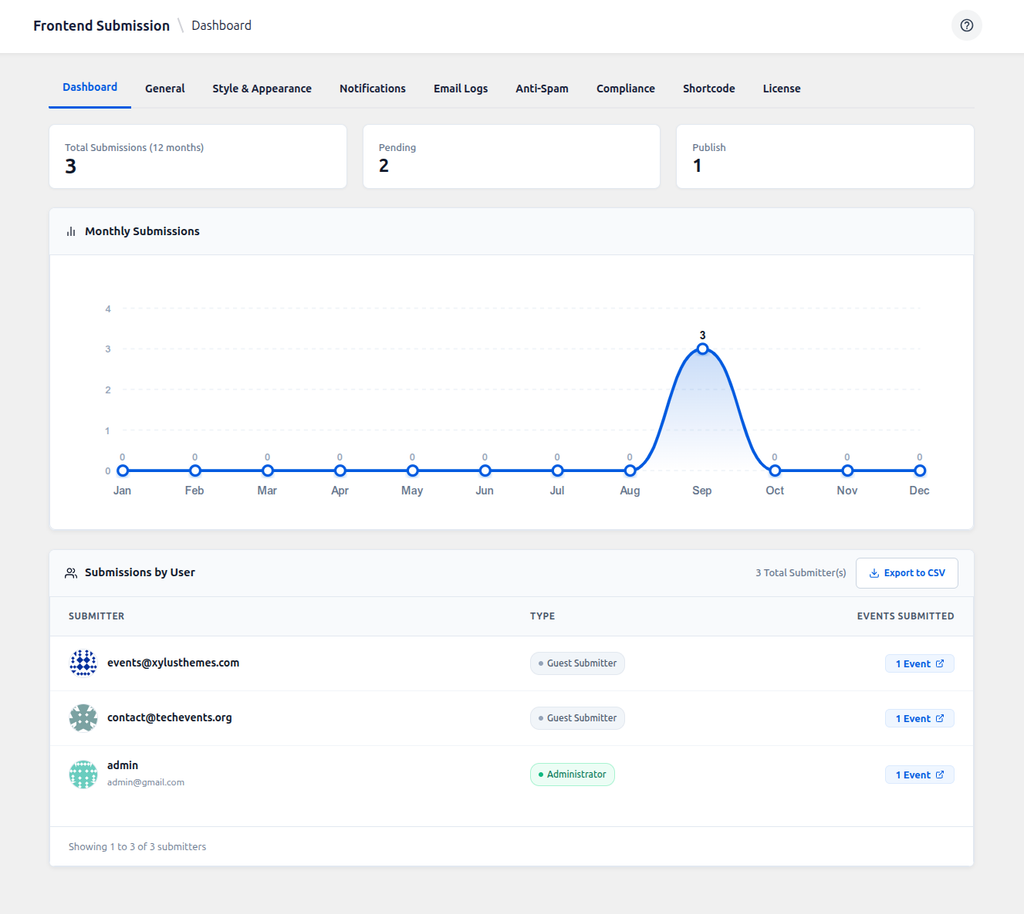
Stat Cards
At the top of the Dashboard you’ll see quick counters covering the last 12 months: total submissions, plus one card per status (Published, Pending Review, Draft, and so on) so you can instantly tell how much moderation work is waiting.
Monthly Submissions Chart
Below the stat cards is a bar chart of submissions per month over the last year, so you can spot trends — useful for planning moderation staffing around busy seasons (e.g. before a big community event or holiday period).
Submissions by User
Rather than one long flat list of events, submissions are grouped by submitter. Each row shows their avatar, name and email, whether they submitted as a registered user or a guest, which target plugin(s) their events went to, and a total event count.
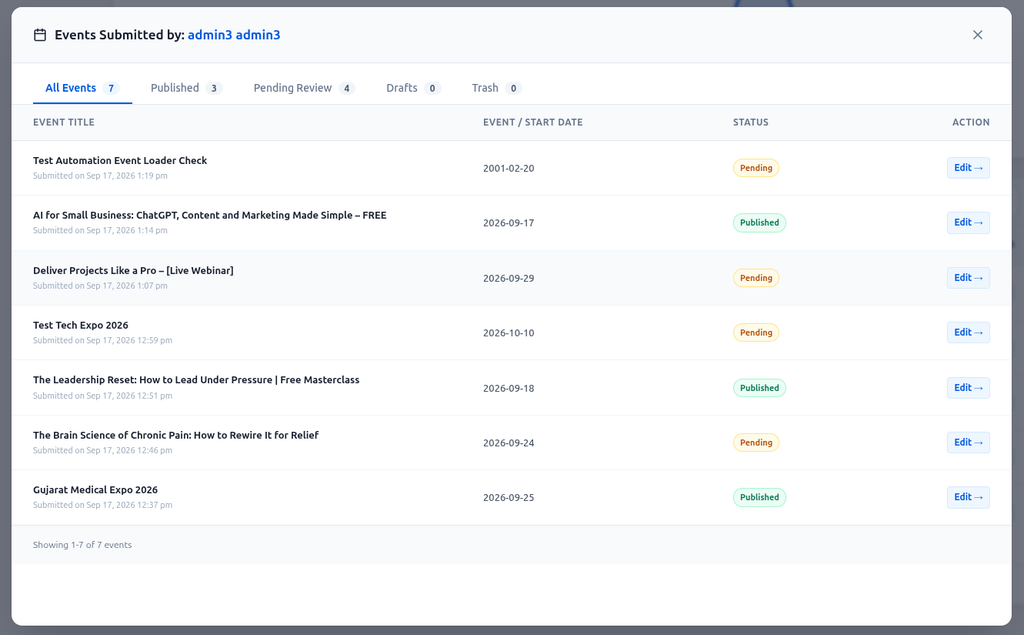
- Click the event count badge next to any submitter to open a modal listing every event that person has submitted.
- Inside that modal, filter by status using the tabs: All Events, Published, Pending Review, Drafts, Trash.
- The table is paginated at 20 submitters per page.
- Use the Export to CSV button (top right of the card) to download the full submitter list for reporting or import into another tool.
Understanding Event Statuses
Every submitted event carries a status that tells you exactly where it stands. Which status a brand-new submission starts with depends on your Settings: General > Default Post Status option:
- Pending Review: Saved to your database but hidden from the public, waiting for you to approve it.
- Draft: Saved as a private work-in-progress.
- Published: Live on your site for everyone to see.
- Trash: Rejected or removed submissions. Rejecting/trashing an event can automatically trigger the “Event Rejected” notification if enabled — see Settings: Email Templates.
Approving or Rejecting an Event
Events land in your target calendar plugin as normal posts of its native post type, so you review and moderate them exactly the way you already review any other post: open it from wp-admin (there’s a direct Edit link on each submission), check the details the submitter provided, and either Publish to approve it or move it to Trash to decline it. Both actions can automatically email the submitter, letting them know the outcome — see Settings: Email Templates to customize those messages.