
The Notifications tab is your on/off switchboard for every automated email the plugin can send, plus who receives the admin-facing ones. Think of it as the master control panel — for actually editing what those emails say, head to Settings: Email Templates instead.
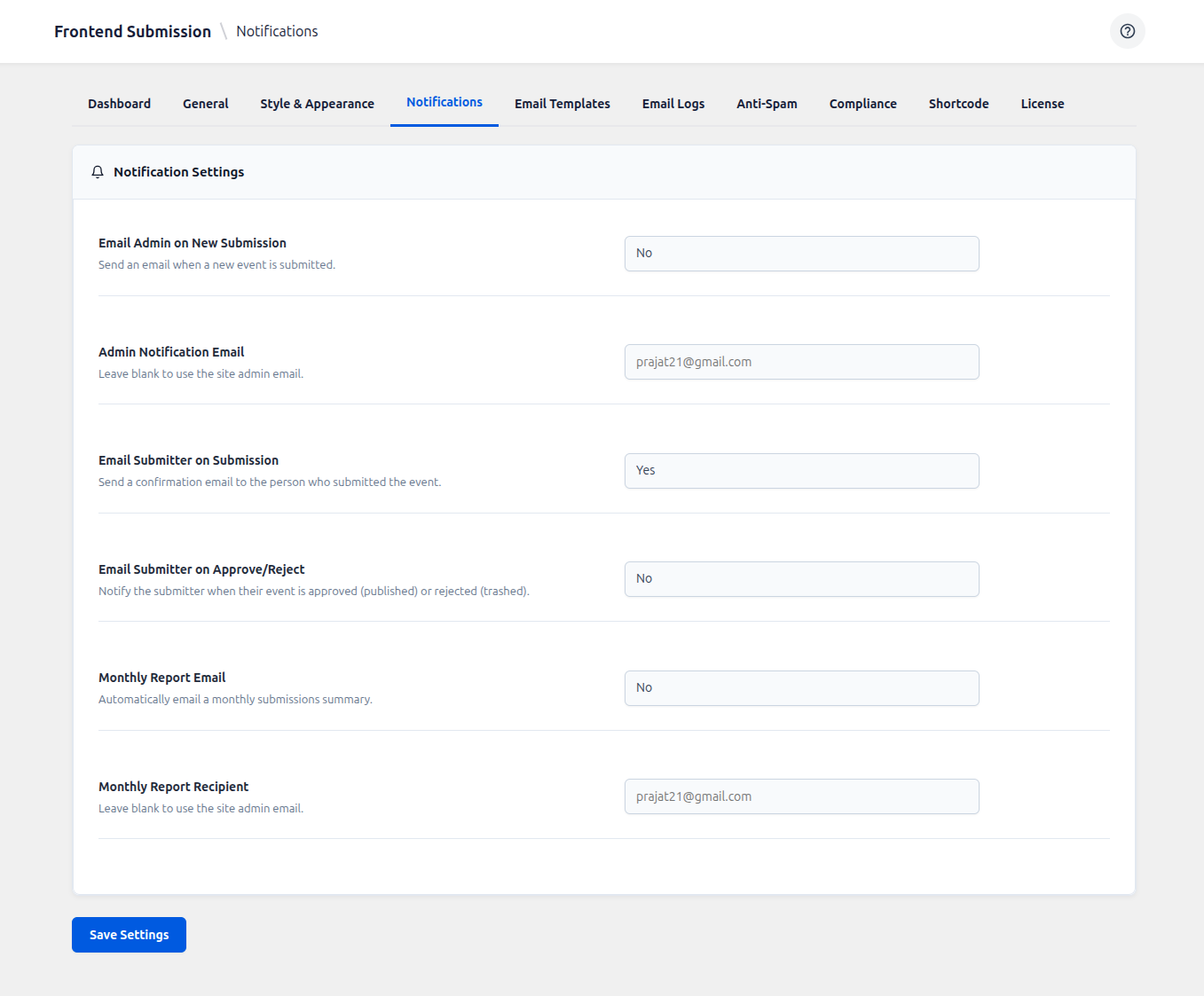
Email Admin on New Submission
Turn this on to get an email the instant someone submits a new event, so nothing sits in your Pending queue unnoticed.
Admin Notification Email
Where those admin alerts go. Leave it blank to use your site’s default admin email, or enter a specific address to route submission alerts to a dedicated moderator or team inbox.
Email Submitter on Submission
Sends an automatic “we received it” confirmation to whoever submitted the event, so they know their submission actually went through.
Email Submitter on Approve/Reject
Keeps submitters in the loop after moderation: this single switch controls whether they’re notified both when their event is approved and published, and when it’s rejected/trashed. (Each of those two messages can still be edited and enabled/disabled individually on the Email Templates tab.)
Monthly Report Email
Enable this to automatically receive a monthly summary email of your site’s submission activity — a convenient way to keep an eye on volume and trends without logging in to check the Dashboard chart yourself.
Monthly Report Recipient
Where the monthly summary is sent. Leave blank to use the site admin email, or set a different address (e.g. a marketing or community-manager inbox).