
Ever wonder if a notification email actually sent? The Email Logs tab is a running history of every email the plugin has sent (or tried to send) — real submissions and test sends alike — so troubleshooting delivery problems doesn’t require guesswork.
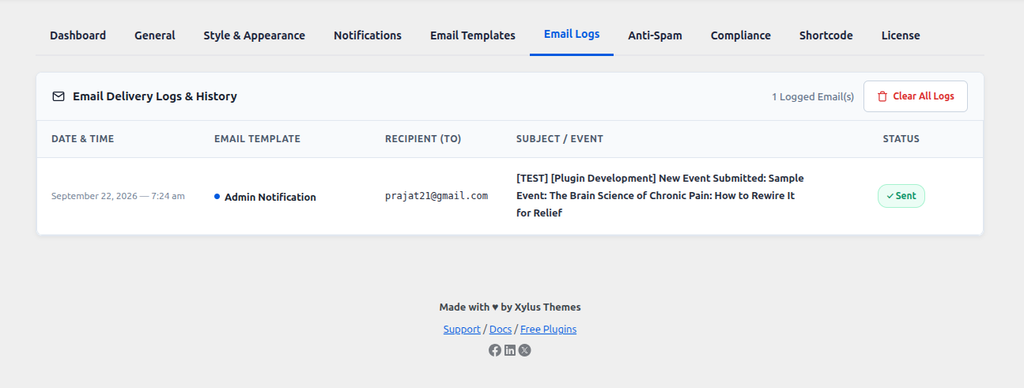
What Each Log Entry Shows
- Date & Time: Exactly when the email was sent, in your site’s date/time format.
- Email Template: Which of the four templates triggered it (Admin Notification, Submitter Confirmation, Event Approved, or Event Rejected).
- Recipient (To): The address the email was delivered to.
- Subject / Event: The email’s subject line and the related event title.
- Status: Whether the email was successfully Sent or Failed to send.
The log is paginated at 20 entries per page, sorted newest first.
Clearing the Log
Click Clear All Logs in the top-right of the card to wipe the entire history. This is permanent, so only do it if you no longer need the record — for example, after resolving a delivery issue and confirming everything’s working.
Troubleshooting a “Failed” Status
If you’re seeing Failed entries, it’s almost always a server/email-sending issue rather than a plugin issue — WordPress’s default mail function is notoriously unreliable on many hosts. Installing an SMTP plugin (to send mail through a real mail provider like Gmail, SendGrid, or your host’s SMTP service) resolves the vast majority of delivery problems.