
The General tab (Xylus Frontend Events > Settings > General) is where you define the core behaviour of your submission system. Here’s what every option does, in plain English.
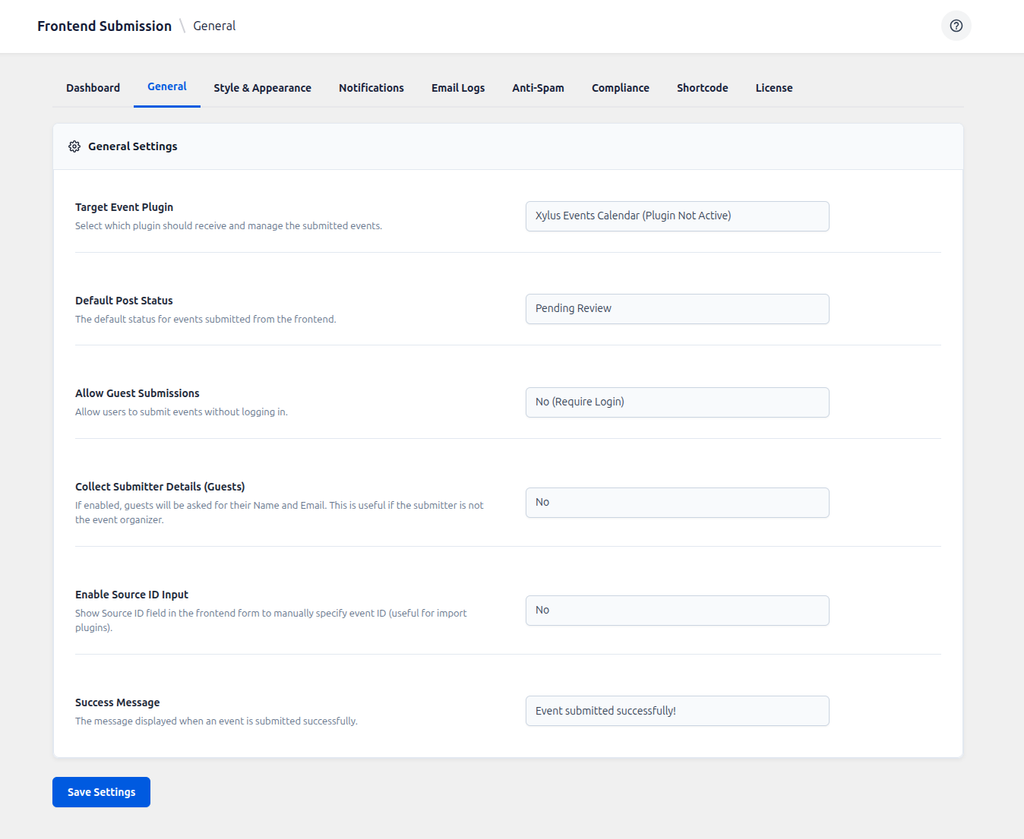
Target Event Plugin
This plugin is a bridge — it needs to know which calendar plugin should actually receive submitted events. Choose from the five supported plugins (see Supported Event Plugins). This is auto-detected on activation but can be changed here at any time if you switch calendar plugins later. Every submitted event is created using that plugin’s own post type, so it appears on your calendar exactly like any other event you’d add manually.
Default Post Status
What should happen the moment a user clicks “Submit”?
- Pending Review (recommended): The event is queued for you to check before it goes live — keeps quality high and spam low.
- Draft: Saved privately as a draft.
- Published: Instantly live. Use this only if you fully trust your community, since there’s no moderation step.
You can override this per-page using the shortcode’s status attribute — see The Frontend Submission Form.
Allow Guest Submissions
Turn this ON to let anonymous visitors submit events without creating an account — good for maximising submissions. Turn it OFF to require an account first, which gives you a more exclusive, members-only directory and lets every submitter track their events on their personal My Submissions page.
Collect Submitter Details (Guests)
When Guest Submissions are allowed, enabling this asks the guest for their Name and Email Address — handy for following up if you have questions about their event, and it’s what powers the “Guest Submitter” label and email address shown on the Dashboard’s submitter list.
Enable Source ID Input
A more technical, optional feature. Turning it on reveals a “Source ID” field on the form, where a submitter (or an external system feeding the form programmatically) can specify the event’s original ID. This is mainly useful when migrating events from another system or API, since it lets you cross-reference and avoid duplicate imports. Most sites can safely leave this off.
Success Message
Write a custom “Thank You” message shown right after a successful submission — a nice touch to set expectations, e.g. “Thanks! Our team will review your event within 24 hours.” If you’d rather send people to a dedicated thank-you page instead of showing a message inline, use the shortcode’s redirect attribute on that specific page.