
Once someone submits an event while logged in, they’ll naturally want to know what happened to it. The My Submissions shortcode gives every logged-in user their own personal dashboard, right on the front end, showing every event they’ve ever submitted through your form and its current status.
Displaying the “My Submissions” Page
Create a page (many sites call it “My Events” or “My Submissions”) and add:
[xylus_my_event_submissions]Link to this page from your site’s main menu or account area so members can find it easily after submitting an event.
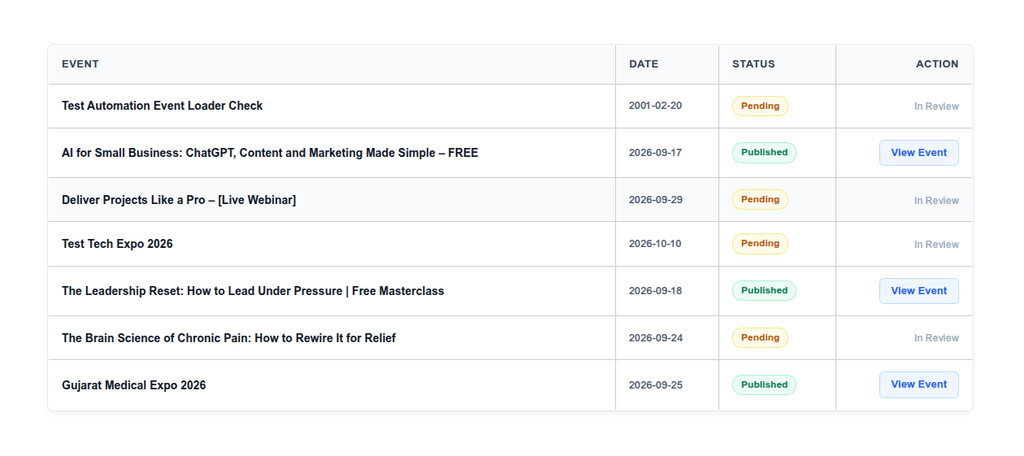
What Users See
- Event: The title of the submitted event.
- Date: The event’s scheduled start date.
- Status: A colour-coded badge — green for Published, amber for Pending Review, and grey for other statuses like Draft.
- Action: A View Event link once the event is published and live; while it’s still awaiting approval, this simply reads In Review.
Results are automatically paginated (10 events per page) with a familiar Previous/Next style pager once a user has submitted more than a page’s worth of events.
Important Notes
- This page requires the visitor to be logged in. Logged-out visitors will simply see a message asking them to log in first.
- Only events submitted through the front-end form are listed here — events you created directly in wp-admin will not appear on a user’s My Submissions page.
- Because guest submissions aren’t tied to a WordPress account, they never appear on any My Submissions page, even if a guest later creates an account with the same email.
- This page is view-only: users can see status and open the live event, but editing or withdrawing a submission still has to be done by you from the admin Dashboard.